Widgets are among WordPress’s most versatile and user-friendly features. They provide website owners with the tools to effortlessly enhance their site’s functionality and user experience. Whether you’re a WordPress beginner, a blogger, or a website owner, understanding widgets can significantly elevate your website design and utility.
As an Amazon Associate I earn from qualifying purchases and sometimes recommend products from other sellers at no extra cost you. For more details see my disclosure policy and privacy policy.
In this guide, we’ll explore widgets and how they work, offering step-by-step instructions on how to add and customize them on your WordPress site. We’ll also share best practices and examples of popular widgets that can transform your website’s user experience.
Understanding the Functionality of Widgets
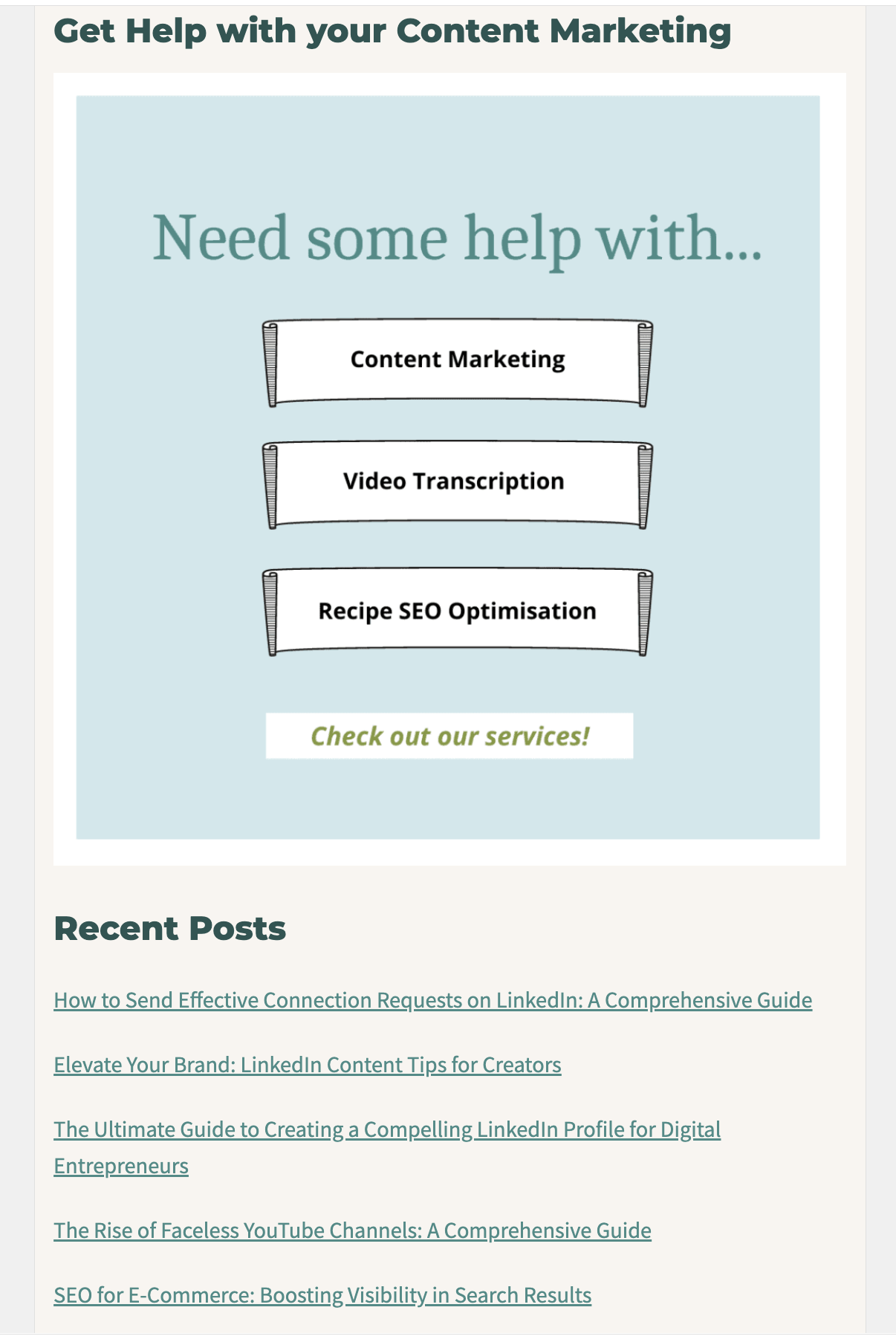
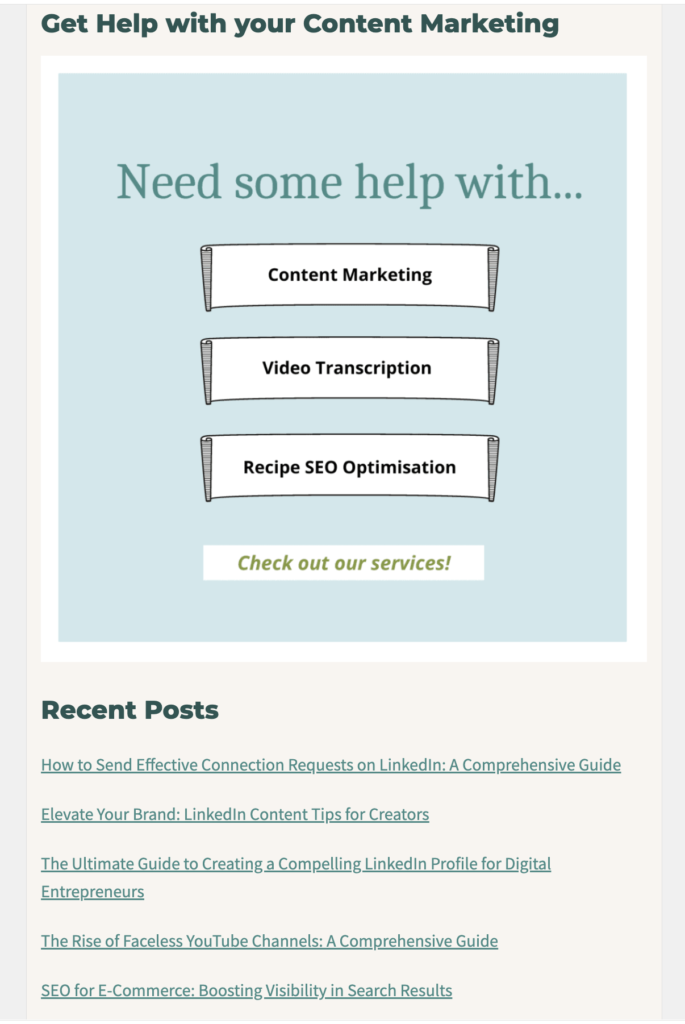
Widgets are small blocks that perform specific functions. You can add them to various areas of your website, such as sidebars, footers, and header sections. They provide a simple way to add features and content like calendars, search bars, recent posts, social media feeds, and more without needing to write any code.
Types of Widgets Available in WordPress
- Standard Widgets: These include pre-installed widgets that come with WordPress, such as text, image, categories, recent posts, and search.
- Custom Widgets: Some themes and plugins offer custom widgets tailored to specific functions or designs.
- Third-Party Widgets: Available through plugins, these widgets can add extensive functionality to your site. Examples include social media feeds, weather updates, or e-commerce tools.
Optimal Locations for Using Widgets on Your WordPress Site
Choosing the right locations to place widgets on your WordPress site can greatly enhance user engagement and navigation. Here are some prime areas where you can deploy widgets for maximum impact:
Sidebar
The sidebar is one of the most popular locations for placing widgets. It is a vertical column that appears alongside your main content, offering a space where you can add a variety of widgets such as a search bar, recent posts, popular tags, or newsletter sign-up forms. Utilizing the sidebar efficiently can help keep your visitors engaged by providing easy access to crucial features and information without distracting them from your primary content.
Footer
The footer section, typically located at the bottom of your site, provides another strategic area for adding widgets. You can use this space for widgets like contact information, social media icons, or a list of categories and tags. This encourages visitors to continue exploring your site even after they have reached the end of a page.
Header
Although less common, the header area can accommodate widgets, especially in designs emphasizing comprehensive navigation. Adding a widget featuring a quick navigation menu, search bar, or even a call-to-action button can make it easier for your visitors to navigate your site right from the top.
In-Content Areas
Certain themes allow for widgets to be placed within the content area of your site. This can be particularly useful for directly integrating advertisements, related posts, or call-to-action buttons into your blog posts or articles. In-content widgets provide a seamless way to engage readers where they are already focused.
Custom Widget Areas
Many advanced WordPress themes and builders offer custom widget areas that can be configured to appear in specific parts of your site, such as after a post or within a specific section of your site’s layout. These customized placements allow you to tailor the user experience to match your website’s goals and design aesthetic.
By thoughtfully choosing and placing widgets in these prime locations, you can significantly enhance the usability and functionality of your WordPress site, providing a more engaging experience for your visitors.
How to Add and Customize Widgets on Your WordPress Site
Adding and customizing widgets in WordPress is straightforward. Here’s a step-by-step guide:
Adding Widgets
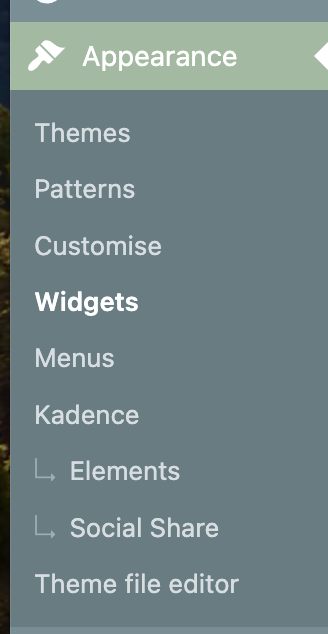
- Navigate to the Widgets Section: From your WordPress dashboard, go to Appearance > Widgets.
- Choose a Widget Area: Typically, you’ll see multiple widget areas such as sidebars and footers.
- Select a Widget: Drag a widget from the list on the left to your chosen widget area on the right.
- Configure the Widget Settings: Each widget may have different settings. For instance, a ‘Recent Posts’ widget might let you choose how many posts to display.
Customizing Widgets
- Access Widget Settings: Click on the widget you’ve added to open its configuration options.
- Adjust the Settings: Modify the settings according to your preferences. This could include setting titles, choosing categories, or defining the number of items to display.
- Save Changes: Click the Save button to apply your changes.
Best Practices for Using Widgets to Enhance Your Site
- Maintain a Balanced Layout: Avoid cluttering your sidebars and footers with too many widgets. Aim for a clean, balanced, and visually appealing layout.
- Enhance User Engagement: Use widgets that improve navigation, highlight popular content, and make it easy for users to connect with you on social media.
- Optimize for SEO: Some widgets can help with SEO, like recent posts or categories, by improving internal linking and making your content easier to navigate.
- Regularly Review and Update Widgets: As your site evolves, review your widgets periodically and remove or replace any that are no longer relevant.
Examples of Popular Widgets and How They Improve User Experience
- Search Widget: Helps visitors find content quickly, improving user satisfaction.
- Recent Posts Widget: Keeps your content fresh and encourages visitors to explore more of your site.
- Social Media Widgets: Increase engagement by allowing visitors to follow and interact with you on various social platforms.
- Calendar Widget: Ideal for businesses or event-based websites, keeping visitors informed about upcoming events.
Before and after scenarios can effectively demonstrate the positive impact of these widgets. For instance, showing how adding a ‘Popular Posts’ widget can reduce bounce rates by engaging visitors with relevant content.
Conclusion
Widgets are a powerful feature in WordPress that can significantly enhance your site’s functionality and user experience. You can create a dynamic and engaging website by understanding their use and implementing best practices.
We encourage you to experiment with different widgets to see what works best for your site. There’s a wide variety of widgets available, each offering unique benefits.