In the digital age, creating a website that stands out requires more than just engaging content and sleek design; it necessitates enhanced functionality that meets your audience’s needs. This is where WordPress plugins become invaluable. For small business owners and bloggers, understanding and leveraging the right plugins can significantly transform their sites from basic platforms to powerful tools that drive user engagement, improve SEO, and increase overall site performance.
As an Amazon Associate I earn from qualifying purchases and sometimes recommend products from other sellers at no extra cost you. For more details see my disclosure policy and privacy policy.
What are WordPress Plugins?
WordPress plugins are software add-ons designed for websites built on WordPress. They enable users to add new features and extend the functionality of their websites without needing to write any code. From social media integration and SEO optimization to security enhancements and e-commerce solutions, plugins offer a wealth of possibilities for enhancing your website.
Understanding the Difference Between WordPress Themes and Plugins
When managing a WordPress website, it’s crucial to discern the distinct roles that themes and plugins play in the development and design process. Themes primarily dictate the visual appearance and layout of your site. They control the website’s aesthetic aspects, including typography, colors, and overall design, providing a template for how your content is displayed.
On the other hand, plugins focus on adding functionality and new features to your website. They work behind the scenes to introduce capabilities such as contact forms, SEO tools, security measures, and more, without altering the fundamental design set by your theme.
This distinction is vital for website owners to understand because it informs the decisions you make regarding site customizations. While a theme sets the stage for your brand’s visual presentation, plugins are the tools that allow you to extend your site’s features, meet specific needs, and enhance user experience. Carefully selecting a combination of these elements is key to building a robust, efficient, and visually appealing website.
The Benefits of WordPress Plugins
WordPress plugins serve as essential tools for small business owners and bloggers, offering a range of benefits that can lead to a more robust and dynamic online presence. Here’s how:
- Enhanced Functionality: By installing plugins, you can add features that aren’t available in the default WordPress installation, such as contact forms, galleries, and subscription options.
- Improved User Experience: Plugins can help improve the site’s navigation, speed up loading times, and ensure mobile responsiveness, all of which contribute to a better user experience.
- SEO Optimization: Many plugins are designed to optimize your website for search engines, helping to improve visibility and drive more traffic to your site.
How to Choose the Right WordPress Plugin
With over 58,000 plugins available in the WordPress repository, selecting the right one can seem daunting. Here are some tips to guide your choice:
- Define Your Needs: Clearly identify the functionality you want to add to your site. This will help narrow down your options.
- Check Ratings and Reviews: Look for plugins with high ratings and positive reviews to gauge their effectiveness and reliability.
- Consider the Update History: Choose plugins that are regularly updated to ensure compatibility with the latest version of WordPress.
Essential WordPress Plugins
To get you started, here are some essential WordPress plugins that small business owners and bloggers should consider:
- Yoast SEO: For optimizing your site for search engines. One of the best SEO plugins available.
- WooCommerce: To add e-commerce functionality to your site. Free to use although it can take a little getting used to for new users.
- Jetpack: For security, performance, and site management features. Created by the same people as WooCommerce.
- Contact Form 7: A versatile and free plugin that allows you to create and manage multiple contact forms on your site with ease. It also supports CAPTCHA and Akismet spam filtering.
- Elementor: A powerful WordPress page builder that provides a drag-and-drop interface to design your website in real-time, offering extensive customization options without any coding skills.
- MonsterInsights: For integrating Google Analytics with your WordPress site, offering insights into your website’s traffic, user engagement, and behavior patterns, enabling data-driven decisions.
- WP Rocket: An optimization plugin that focuses on speed, enabling caching, image loading only upon request (lazy loading), and database optimization to improve website performance.
- Wordfence Security: A comprehensive security plugin that includes an endpoint firewall and malware scanner built specifically for WordPress, designed to protect your website from hacks and malware.
Installing WordPress Plugins
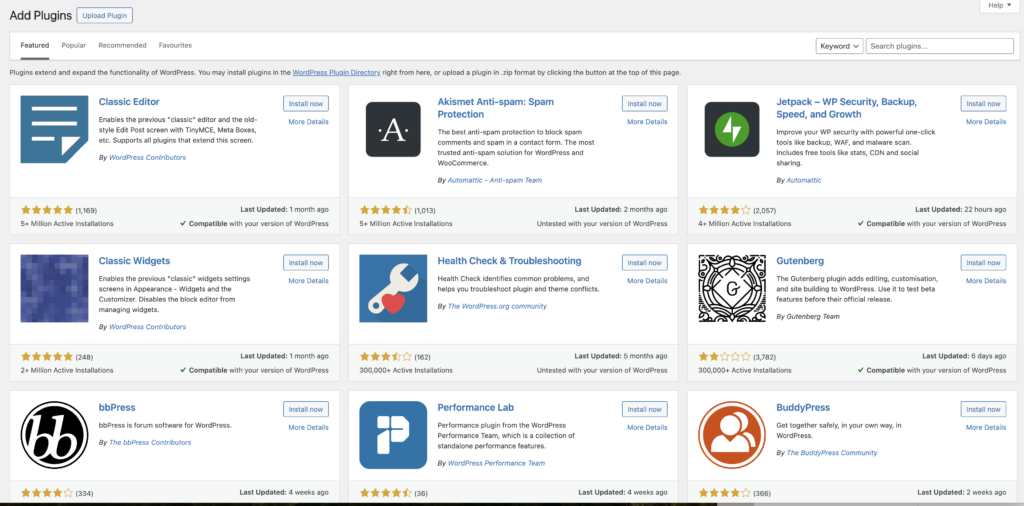
To further enhance your website’s capabilities, installing new plugins is a straightforward process that can be completed from the WordPress plugin library directly or by uploading a plugin via a .zip file. Here’s how to do both:
Installing from the WordPress Plugin Library
- Log in to your WordPress dashboard.
- Navigate to Plugins > Add New.
- Use the Search bar to find a specific plugin or browse through the featured, popular, and recommended tags.
- Once you find the plugin you wish to install, click the “Install Now” button next to the plugin.
- After installation is complete, click the “Activate” button to start using the plugin on your site.
Installing from a Downloaded .zip File
- Download the plugin .zip file from a reputable source.
- In your WordPress dashboard, go to Plugins > Add New.
- Click the “Upload Plugin” button at the top of the page.
- Choose File and select the .zip file you previously downloaded, then click “Install Now.”
- Once the upload and installation are complete, click “Activate Plugin” to begin using it on your website.
It’s essential to ensure that any plugin you install is compatible with your version of WordPress and does not adversely affect your site’s performance. Regularly review and update your plugins to maintain optimal website functionality and security.
Best Practices for Managing WordPress Plugins
While plugins can significantly enhance your site, it’s crucial to manage them properly to ensure optimal performance. Here’s how:
- Keep Plugins Updated: Regular updates protect your site from security vulnerabilities and ensure compatibility.
- Limit the Number of Plugins: Only keep essential plugins to avoid slowing down your site.
- Backup Your Site: Always backup your site before installing or updating plugins to prevent data loss.
Pros and Cons of Enabling Auto-Updates for Plugins
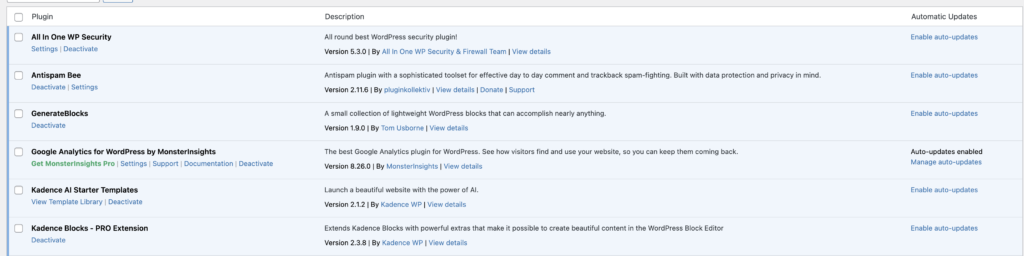
Enabling auto-updates for your WordPress plugins can streamline your website management by ensuring that you’re always using the latest versions. However, it’s critical to weigh the advantages and disadvantages before activating this feature.
Pros
- Security: Auto-updates help protect your site by promptly applying security patches.
- Convenience: Reduces the need for manual monitoring and updating of plugins.
- Bug Fixes: Automatically resolves known issues, improving site stability and performance.
Cons
- Potential Compatibility Issues: Updates might not be compatible with other plugins or themes, potentially breaking your site.
- Lack of Control: You cannot review or test an update before it’s applied, risking unexpected changes.
- Update Errors: Automatic updates can sometimes fail, leaving your site in a vulnerable state until the issue is rectified manually.
It’s advisable for website owners to consider their site’s complexity, compatibility, and how critical their web presence is to their business or activity before deciding on enabling auto-updates for plugins. Some may choose a balanced approach by enabling auto-updates for select plugins known for their stability and critical security functions, while manually updating others to check compatibility.
Handling Plugin Conflicts on Your WordPress Site
Plugin conflicts occur when two or more plugins installed on your WordPress site interfere with each other’s functionality, potentially leading to website malfunctions or even rendering the site inaccessible. These conflicts can also arise between plugins and your WordPress theme. The primary reason for such conflicts is often overlapping code or resources, which can result in unexpected behavior on your site.
Identifying Plugin Conflicts
If you suspect a plugin conflict, the symptoms might include broken functionality, white screens of death (WSOD), error messages, or parts of your site not displaying correctly. To diagnose a plugin conflict:
- Deactivate all plugins: Start by deactivating all your plugins. If this resolves the issue, it’s likely a plugin conflict.
- Reactivate plugins one by one: Reactivate each plugin one at a time, checking your site for the issue after each activation. This process helps identify the specific plugin causing the conflict.
- Check for theme conflicts: If deactivating plugins doesn’t resolve the issue, switch to a default WordPress theme (like Twenty Twenty-One) to rule out theme conflicts.
Resolving Plugin Conflicts
Once you’ve identified the conflicting plugins, consider the following steps to resolve the issue:
- Update plugins and theme: Ensure all your plugins and your theme are updated to their latest versions. Developers often release updates to fix bugs and conflicts.
- Contact plugin developers: Reach out to the developers of the conflicting plugins. They may already be aware of the issue and can provide a solution or workaround.
- Choose an alternative plugin: If the conflict cannot be resolved, you may need to replace one of the conflicting plugins with an alternative that offers similar functionality but does not cause conflicts.
- Use a plugin management tool: Tools like Plugin Detective can help automate the process of identifying problematic plugins.
Preventing Future Conflicts
To minimize the risk of future plugin conflicts:
- Be selective about the plugins you install: Choose well-coded, regularly updated plugins with a good track record and positive reviews.
- Test new plugins thoroughly: Before installing a new plugin on your live site, test it on a staging environment to check for any conflicts with your current setup.
Handling plugin conflicts effectively ensures that your WordPress site remains functional, secure, and provides a seamless experience to your visitors. Always approach this process systematically to identify and resolve issues with minimal impact on your site’s performance and user experience.
Conclusion
WordPress plugins are indispensable tools for enhancing website functionality, improving user experience, and achieving your digital objectives. By strategically selecting and managing your plugins, you can unlock the full potential of your website and position your small business or blog for success in the digital landscape. Remember, the right WordPress plugins are not just add-ons; they are essential components that can elevate your site from good to great.
If you are looking for help managing your WordPress plugins, contact us for a bespoke maintenance service quote.